So I was requested to Export the Data from a Crystal Report to Excel with Headers.
This is a work around not the perfect solution. It worked for my request, maybe it will for you as well.
The report uses a DataTable as DataSource.
What I did I export the DataTable as comma delimited file using this method
DataTable2CSV - Saving a DataTable to a CSV file
http://www.devx.com/vb2themax/Tip/19703
Again it worked for me. I got the data and the Headers.
The Report was simple straight forward not a Master - Detail Report.
jueves, 10 de diciembre de 2015

Operation not yet implemented - Crystal Reports
I have this problem when the users use EXPORT AS A PDF from a Crystal Report.
The solution was simple
Grab the Arial and Times Roman Font from a XP Machine put them into a Flash Drive and copy them to the machine you are getting the problem. That will fix it.
What causes this problem? Microsoft update the fonts and they are "not compatible" with CR.
A work around is changing all the Fonts in your report to something else, mmmmm User will not wait for that I will stick with the XP Solution. I can not upload them here but you can send me a email I will send them to you if you need them.
Have a good one
viernes, 4 de diciembre de 2015
Export a Crystal Reports Data to Excel
Simple.
Private Sub btnLoadReport_Click(ByVal sender As System.Object, ByVal e As System.EventArgs) Handles btnLoadReport.Click
Try
vLoadDataSet() 'load the datatable with the records
Dim pr1 As New ParameterDiscreteValue
pr1.Value = dtDateFrom.Value.ToShortDateString
Dim pr2 As New ParameterDiscreteValue
pr2.Value = dtDateTo.Value.ToShortDateString
Dim pr3 As New ParameterDiscreteValue
pr3.Value = txtTitle.Text
Dim crSource As New RepMcLennanCCCriminalDocket
crSource.SetDataSource(dtReport)
crSource.SetParameterValue("pFrom", pr1)
crSource.SetParameterValue("pTo", pr2)
crSource.SetParameterValue("pTitle", pr3)
crViewer.ReportSource = crSource
crViewer.Refresh()
crViewer.Visible = True
crViewer.Show()
''here set the export
crSource.ExportOptions.ExportDestinationType = ExportDestinationType.DiskFile
crSource.ExportOptions.ExportFormatType = ExportFormatType.ExcelRecord
Dim objExcelOptions As ExcelFormatOptions = New ExcelFormatOptions
objExcelOptions.ExcelTabHasColumnHeadings = True
objExcelOptions.ExcelUseConstantColumnWidth = False
crSource.ExportOptions.FormatOptions = objExcelOptions
Dim objOptions As DiskFileDestinationOptions = New DiskFileDestinationOptions
objOptions.DiskFileName = "SettingList.xls"
crSource.ExportOptions.DestinationOptions = objOptions
''here export
crSource.Export()
''here open the excel
Process.Start("EXCEL.EXE", """SettingList.xls""")
Catch ex As Exception
MessageBox.Show(ex.ToString)
End Try
End Sub
lunes, 31 de agosto de 2015
Error 2869
I was trying to install a msi file in a windows 8.1 machine and got the Error 2869
I had tried to run msiexec /i msipack.msi in a command prompt windows as administrator, still the same.
Now I knew the package i was trying to install is a .NET Framework 2 and this Windows 8.1 was a fresh installation. So I added the .Net Framework 2 and 3.5 (add/remove programs | turn windows features On or Off | check Net Framework 3.5 Includes 2) to Windows 8.1
run again the command prompt as Administrator.
Problem solved.
martes, 31 de marzo de 2015
Microsoft Word Automation, let word do the numbering for you
This is a simple trick,
We use MSWord to generate some quick reports for our clients, We create a table in a word document and we fill the table with the data we retrieve from SQL Server. Sometimes we need to add a number to the each Row to show the number of records or just numbering each row, so we added ROW_NUMBER ... etc to our queries, until now, because I tried this trick.
like the picture shows bellow we draw a 3 rows tables and in the row were the data will be populated i create a empty column and I clicked in the Numbering Icon from the Word Tool Bar, this will insert a number 1. in that empty column.

The result will be :
The report with a sequential number in each row, pretty simple and some time saver.

We use MSWord to generate some quick reports for our clients, We create a table in a word document and we fill the table with the data we retrieve from SQL Server. Sometimes we need to add a number to the each Row to show the number of records or just numbering each row, so we added ROW_NUMBER ... etc to our queries, until now, because I tried this trick.
like the picture shows bellow we draw a 3 rows tables and in the row were the data will be populated i create a empty column and I clicked in the Numbering Icon from the Word Tool Bar, this will insert a number 1. in that empty column.
The result will be :
The report with a sequential number in each row, pretty simple and some time saver.
miércoles, 15 de octubre de 2014
Sync a local folder with remote folder FTP a combination of Robocopy and WinSCP
Here is the situation:
1.- Robocopy, it is free and it is available on Win 7 and up, just open command prompt window and type Robocopy, press enter if you see this screen you have it, otherwise you can download it from the web.
 2.- WINSCP this is a great Free FTP client that allows you to do Scripts. you can download it from: http://winscp.net/eng/download.php
before I do the steps let me explain the options i will be using from these 2 tools.
A.- Robocopy has an OPTION
B: WinSCP I will be using the Synchronize option
so now let do the steps:
It is pretty simple, removing the temp folder I am using, "d:\uploadimages"
recreating it again and copying all New/Modified documents from the last 10 days, from my source "d:\images" to my Temp folder "d:\uploadimages"
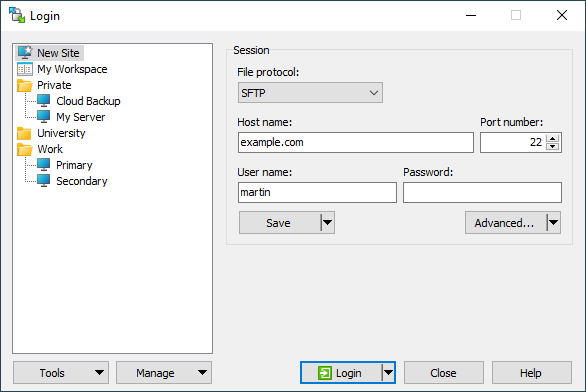
Test it and be sure you can connect.
Second. open notepad and type the following:
And save it as d:\upload.txt or any name, FTPSERVER needs to match the sever name in WinSCP.
what are we doing here is pretty simple, open a connection to the FTP server and synchronize the content of the Local folder to the Remote Folder, simple right?
now to execute this script you call it like this from Command Prompt:
cd "C:\Program Files (x86)\WinSCP\"
winscp.com /script=d:\upload.txt
you will see something like this:

and the program will compare and upload the new/modified files.
putting these 2 steps together you end with something like this:
------begin-----
save it as a Batch file and add it to the schedule task, test it and make sure it works.
I hope this helps you.
Sources:
http://winscp.net/eng/docs/task_synchronize_full#automating_synchronization
http://winscp.net/eng/docs/ui_login
http://technet.microsoft.com/en-us/library/cc733145.aspx
I need to update a FTP server with the latest documents from our client's server. Latest documents included New and Modified Documents.
I will be using 2 tools, both free.1.- Robocopy, it is free and it is available on Win 7 and up, just open command prompt window and type Robocopy, press enter if you see this screen you have it, otherwise you can download it from the web.

before I do the steps let me explain the options i will be using from these 2 tools.
A.- Robocopy has an OPTION
- /S : means include sub directories
- /R:n: Means retry to copy the files N times, if you use 0 then it will skip that file
- /MAXAGE:NDays: means exclude all the files older than Ndays or you can put a date.
B: WinSCP I will be using the Synchronize option
so now let do the steps:
I. Copy all the Newest Files from the Source Folder to a Temp Destination folder, to accomplish this I create the following DOS script:
rd d:\uploadimages /s /q
md d:\uploadimages
robocopy D:\Images d:\uploadimages /s /r:0 /MAXAGE:10
It is pretty simple, removing the temp folder I am using, "d:\uploadimages"
recreating it again and copying all New/Modified documents from the last 10 days, from my source "d:\images" to my Temp folder "d:\uploadimages"
II. Create the script to upload this temp folder to my FTP
First you need to define your FTP server in Winscp, follow this link http://winscp.net/eng/docs/ui_loginTest it and be sure you can connect.
Second. open notepad and type the following:
option batch on
option confirm off
open FTPSERVER
synchronize remote "d:\uploadimages" "/Client/Uploadimages"
close
exit
And save it as d:\upload.txt or any name, FTPSERVER needs to match the sever name in WinSCP.
what are we doing here is pretty simple, open a connection to the FTP server and synchronize the content of the Local folder to the Remote Folder, simple right?
now to execute this script you call it like this from Command Prompt:
cd "C:\Program Files (x86)\WinSCP\"
winscp.com /script=d:\upload.txt
you will see something like this:

and the program will compare and upload the new/modified files.
putting these 2 steps together you end with something like this:
------begin-----
rd d:\uploadimages /s /q
md d:\uploadimages
robocopy D:\Images d:\uploadimages /s /r:0 /MAXAGE:10
cd "C:\Program Files (x86)\WinSCP\"
winscp.com /script=upload.txt
------end-----save it as a Batch file and add it to the schedule task, test it and make sure it works.
I hope this helps you.
Sources:
http://winscp.net/eng/docs/task_synchronize_full#automating_synchronization
http://winscp.net/eng/docs/ui_login
http://technet.microsoft.com/en-us/library/cc733145.aspx
martes, 1 de julio de 2014
RM Cobol Error 24,02 or 34,02 Exporting a File that will be bigger than 2 GB
So I was doing this COBOL Conversion and I got this error 34,02

so I found this great link
_________________________________________________________________________________
https://community.microfocus.com/microfocus/cobol/rm_cobol/w/knowledge_base/6937.recovery-encounters-cobol-io-error-2402.aspx
Recovery encounters COBOL I/O Error 24,02
This article explains how to resolve an Index File Recovery Utility 24,02 COBOL I/O Error.
Problem:
When using the RM/COBOL Index File Recovery Utility with a large file, it can fail with a COBOL I/O Error 24,02. This error indicates that there is not enough room left to write to the file. How is this resolved?
Resolution:
This error is caused by the fact that the Index File Recovery Utility opens index files in binary sequential mode. Therefore, in order to resolve this issue, you will need to create a configuration file that enables the use of large sequential files (over 2 GB). The steps to create the configuration file are as follows:
Create a text file named runcobol.cfg in the same directory as the Runtime executable (runcobol).
Add the following configuration record: RUN-SEQ-FILES USE-LARGE-FILE-LOCK-LIMIT=YES
Save the file.
The configuration file will be loaded automatically and will allow you to successfully recover your index file.
_________________________________________________________________________________
I followed the instructions and it did not work. I got the same error again.
Then I just ran "runcobol.exe" and showed me this:
RM/COBOL Runtime - Version 7.00.02 for 32-Bit Windows (95/98/NT).
Configured for 10 users.
Copyright (c) 1985, 1986-1999 by Liant Software Corp. All rights reserved.
Registration Number: NE-0000-05800-0010
Usage: RUNCOBOL name [options]
Options: [A=arguments] [B=buffersize] [C=configfile] [D] [I] [K]
[L=libname] [M] [S=switches] [T=sortsize] [X=configmod]

so I found this great link
_________________________________________________________________________________
https://community.microfocus.com/microfocus/cobol/rm_cobol/w/knowledge_base/6937.recovery-encounters-cobol-io-error-2402.aspx
Recovery encounters COBOL I/O Error 24,02
This article explains how to resolve an Index File Recovery Utility 24,02 COBOL I/O Error.
Problem:
When using the RM/COBOL Index File Recovery Utility with a large file, it can fail with a COBOL I/O Error 24,02. This error indicates that there is not enough room left to write to the file. How is this resolved?
Resolution:
This error is caused by the fact that the Index File Recovery Utility opens index files in binary sequential mode. Therefore, in order to resolve this issue, you will need to create a configuration file that enables the use of large sequential files (over 2 GB). The steps to create the configuration file are as follows:
Create a text file named runcobol.cfg in the same directory as the Runtime executable (runcobol).
Add the following configuration record: RUN-SEQ-FILES USE-LARGE-FILE-LOCK-LIMIT=YES
Save the file.
The configuration file will be loaded automatically and will allow you to successfully recover your index file.
_________________________________________________________________________________
Then I just ran "runcobol.exe" and showed me this:
Configured for 10 users.
Copyright (c) 1985, 1986-1999 by Liant Software Corp. All rights reserved.
Registration Number: NE-0000-05800-0010
Usage: RUNCOBOL name [options]
Options: [A=arguments] [B=buffersize] [C=configfile] [D] [I] [K]
[L=libname] [M] [S=switches] [T=sortsize] [X=configmod]
Do you see it? the "C" option
so then i ran
c:\>runcobol recover2 C=runcobol.cfg
and I got my 3 GB Exported file!!!! Yes over the 2 GB Limit
You can see now it exported almost 800K records not just 242K as the initial screen
I hope this help you
Suscribirse a:
Entradas (Atom)